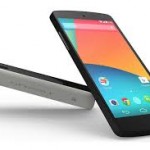
Android 4.4 kitkat OTA arrived
27/11/2013Capitalise Home on WordPress Menu Bar
02/12/2013Android Kitkat review

Welcome to my Android Kitkat review. Kitkat is version 4.4 in the Android line of operating systems for Google’s smartphones. Kitkat was the surprise name unveiled back in September after it was believed that they were going to name it ‘Key Lime Pie’. Google name all their operating system updates after desserts since, they say, Android powered smartphones “make our lives so sweet“. So, if you didn’t already know, they have been called, Cupcake, Donut, Eclair, Froyo, Gingerbread, Honeycomb, Ice Cream Sandwich, Jelly Bean and now Kitkat.
I have been waiting for the update to appear because I have a Nexus device and they get special love from Google. More or less as soon as they release a new version of the OS on a new device (this year it was the Nexus 5 handset) they push the update out to the older Nexus devices. Today, when I turned on my Nexus 7 (2012 model), I saw the notification stating that it had already downloaded Kitkat and it was ready to install it. I told it to go ahead and three or four minutes later it booted into Android 4.4 sporting the build number KRT16S. It retains all your previous settings, apps and any other data you had before so you won’t lose anything.
The first thing I noticed was a small, up-pointing arrow at the bottom of the lock screen. Slide it up and Google Now springs into life. Nothing new was apparent with Google Now other than it’s accessible to you earlier after you pick up your device. It doesn’t defeat the lock screen so, if you have a screen lock set up, you’ll need to enter your code first.

After unlocking the device everything seems normal. Nothing new to be seen! No changes immediately obvious but, if you look closely, you can see that the notifications are all white. Usually, on a Nexus device, they go green when connected to Google services. That was a useful feature so I think that is a retrograde step, personally, but it does smarten up the appearance a bit.
The next thing I noticed was that there were several software updates going on in the background. Quickoffice, Google Drive, You Tube and twitter. I guess these updates were required in order for those apps to get along with Kitkat.
I just had to try out the new voice activation. Google state that you can say “OK Google” to get the device ready for voice input but nothing happened when I tried it. I learned that you need to be already on the Google Now screen or on the home screen. I tried it on both and there was no response. Then I remembered it only worked with American English so, from the Now screen, I touched the three dots to enter the menu, then settings then voice, then Language, then English, then English(US). Phew! Then I tried again from the Now screen, “OK Google”… I immediately heard the double acknowledgement tone and saw the “speak now” symbol with the microphone icon that pulsates with the sounds in the room. Nice touch I suppose but it’s of limited use because, presumably, you have the device in your hand anyway seeing as you just turned it on to enter the Now screen in the first place. It doesn’t work on the home screen by the way.
One thing I should mention is how fast and responsive the Nexus 7 feels with Kitkat. Google say they have improved multitasking and touchscreen responsiveness and I cannot dispute that at all.
I would love to try the new caller ID feature where, if you receive a call from a number that isn’t in your contacts, it will look up the number and, hopefully, tell you who it is. That is a really awesome feature but one I cannot try out on a Nexus 7. I’ll have to wait until Google release Kitkat for the HTC One before I can test that feature out (unless I plump for a Nexus 5)!
If you use the standard Google keyboard for typing (I don’t, I use Swiftkey) you have access to a ton of new emojis. There are a multitude of coloured icons to insert into your text for lots of events or objects. Neat.

The new version of Quickoffice looks slick.
Then, I thought I’d have a quick look in the settings menu. I noticed the little cog icon is different. Delving into the menu options I saw there is a new setting for printing. It has two entries – “cloud printing” and “HP print service Plugin”. I haven’t researched the HP one but the cloud printing refers to their previous system where you can print from your device to any printer connected to the internet through a Google Chrome browser. I’ve used that before and it certainly works.
The new version of quickoffice looks slick. I told it to open up an existing document but then remembered I don’t have any documents on the device. That didn’t matter though, because, with the tight integration with Google Drive I was opening up documents from my account in an instant. It already knew my Google credentials so Drive was immediately accessible for opening and saving documents. Very slick. I don’t think the scrolling and zooming in and out of documents was particularly smooth but neither is it with Documents To Go.
For a full list of Kitkat updates from Jelly Bean, read the article here at Android.com.
All in all I think this is a very worthwhile upgrade and there’s nothing like a free upgrade to rejuvenate you!
What do you think Google will call the next version of Android?