How to speed up your broadband connection
30/10/2013What are the benefits of cloud hosting?
16/11/2013
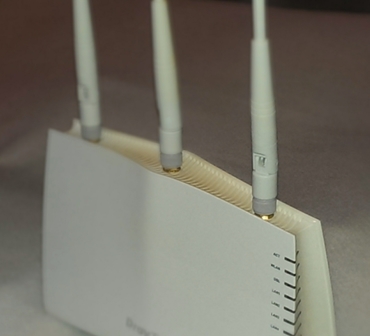
People often complain to me about mobile devices that disconnect from the wifi router; download speeds that drop right down; and picture-rich web pages that take too long to display, even over a fast broadband connection. This type of issue is rarely down to incompatibilities between the router and the wifi interface in the device. It’s far more likely to be due to a weak signal between the two.
The things that can reduce signal strength are:
- too much distance between the device and the router
- thick or damp walls
- other equipment sharing the same frequency channel as your router or causing interference with it such as your microwave oven, baby monitor or DECT phone
- neighbours’ wifi routers on the same channel as yours
Extend WIFI range?
The simple solution is to move closer to your router, however, this is often inconvenient or impossible and won’t help you if you want to read the news in the bath or the Summer house.
But what if you could move your router closer to the bathroom? In theory, you could plug your router into any telephone socket around the house but that can disrupt your broadband signal. (See my post on improving your broadband signal for more information.) The solution might be to separate the wifi function of your router from its broadband function. For instance, you could have your broadband router plugged into your master line jack unit in the hallway and have a wifi transmitter upstairs on the landing. That way you get the best of both worlds. Or, even better, have your wifi router in the hall serving as both an adsl router and wifi transmitter plus place another wifi transmitter upstairs or at the back of the house in range of the garden.
That’s exactly what I’m going to describe here but, rather than buy an expensive wifi repeater, you could just get hold of a second-hand wifi router off a relative or off ebay for a few pounds. Old wifi routers are everywhere. Every time someone swaps their broadband supplier they are invariably sent a new wifi router and the old, still perfectly serviceable, one is left in the garage or sold on. In the week prior to this post, thirteen second-hand wifi routers sold on ebay for less than £5! Just make sure you pay attention to the protocol they support – wifi standard 802.11ac is the most recent preceded by 802.11n which is probably the most widely adopted at the moment and fast enough for most. The only downside is that you’ll need to run an ethernet cable between the two routers and this might be a problem for some people.
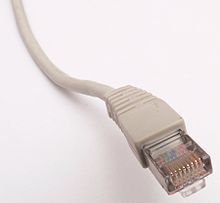
RJ45 plug
So, you’ve got hold of a cheap wifi router, now you need to position it in range of your summer house or bathroom and plug in the ethernet cable between it and your existing one. Again, cat5 ethernet cable can be bought off ebay very cheaply, for instance, a 30m cable with RJ45 plugs at each end sold for £1.59 this week. An RJ45 plug is what fits into the LAN sockets at the back of your router and you need one on each end of the cable.
When you’ve plugged the two routers together and powered them on you will see a link LED light up on each router and start flashing.
Adjusting the router’s settings
The only thing left to do now is a little setting up in the new router’s settings menu.
I recommend you do a factory reset of the router and you could find out how to do that with a quick google search. You then need to connect to the router by either wifi or by ethernet cable. Then try logging into the router’s admin pages. Again, do a google search for the router model’s factory IP address and username/password combination. Usually a router’s IP address is http://192.168.1.1 or http://192.168.0.1 and the username is usually “admin” with a password of “admin” or “password” (You should always change the default password if it’s one of these.). Quite often, the admin username and password will be printed on a sticker underneath the router.
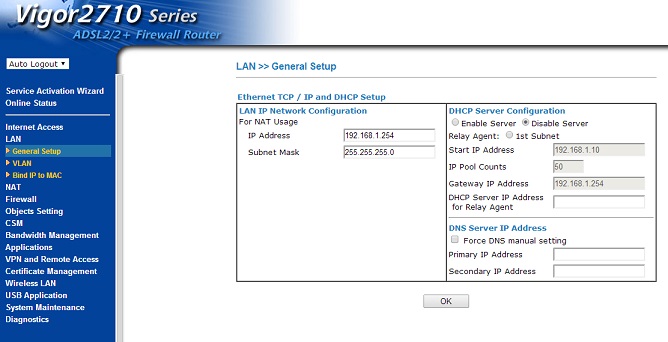
Set the router’s IP address and turn off the DHCP server
Once you’ve logged into the router’s admin pages you need to do four things:
- Set the router’s IP address to something that is within your own subnet. You can find out what that is by logging into your own (existing) router. Alternatively, you could type “ipconfig.exe” at a command prompt (on a Windows computer) and look for the entry that says “default gateway” and that is the IP address of your existing router. Set this as the IP address of your new router but change the last digit to something unused on your network. In the image below for a Draytek Vigor router you can see it is set to 192.168.1.254 in LAN>General Settings. Most routers have similar menu configurations.
- Turn off the DHCP server – also within the LAN settings menu
- Change the wireless channel to “auto” or one that your existing router is not using otherwise the two routers can interfere with each other’s signal if they happen to be on the same channel.
- Note the wireless login passphrase (it can be found in a menu item something like “wireless LAN>security”) or change it to something memorable. Again, this is often printed on the label underneath the router.

Change the wireless channel to “auto” or one that your existing router is not using
Then save the settings, reboot the router and, using your mobile device, search for available wifi networks. Once you’ve entered your passphrase it will connect to your new router and you should now be able to access the internet on your mobile device from your new or your existing router and your device will automatically switch between them as you move in and out of range.
That’s all there is to it. Now you know hot to extend wifi range cheaply.
If you have any questions please ask.